
A 1080p webcam
The simplest choice: it clamps to a boom arm and stays put. Skip 720p webcams, which make cards at the edge of the mat hard to read.
Webcam Magic · Setup guide
Any 1080p webcam, or the phone in your pocket, is enough. What matters is where you put it: straight above your playmat, in focus, with the light coming from the side. Here is how to get it right, and what to do when it isn’t.
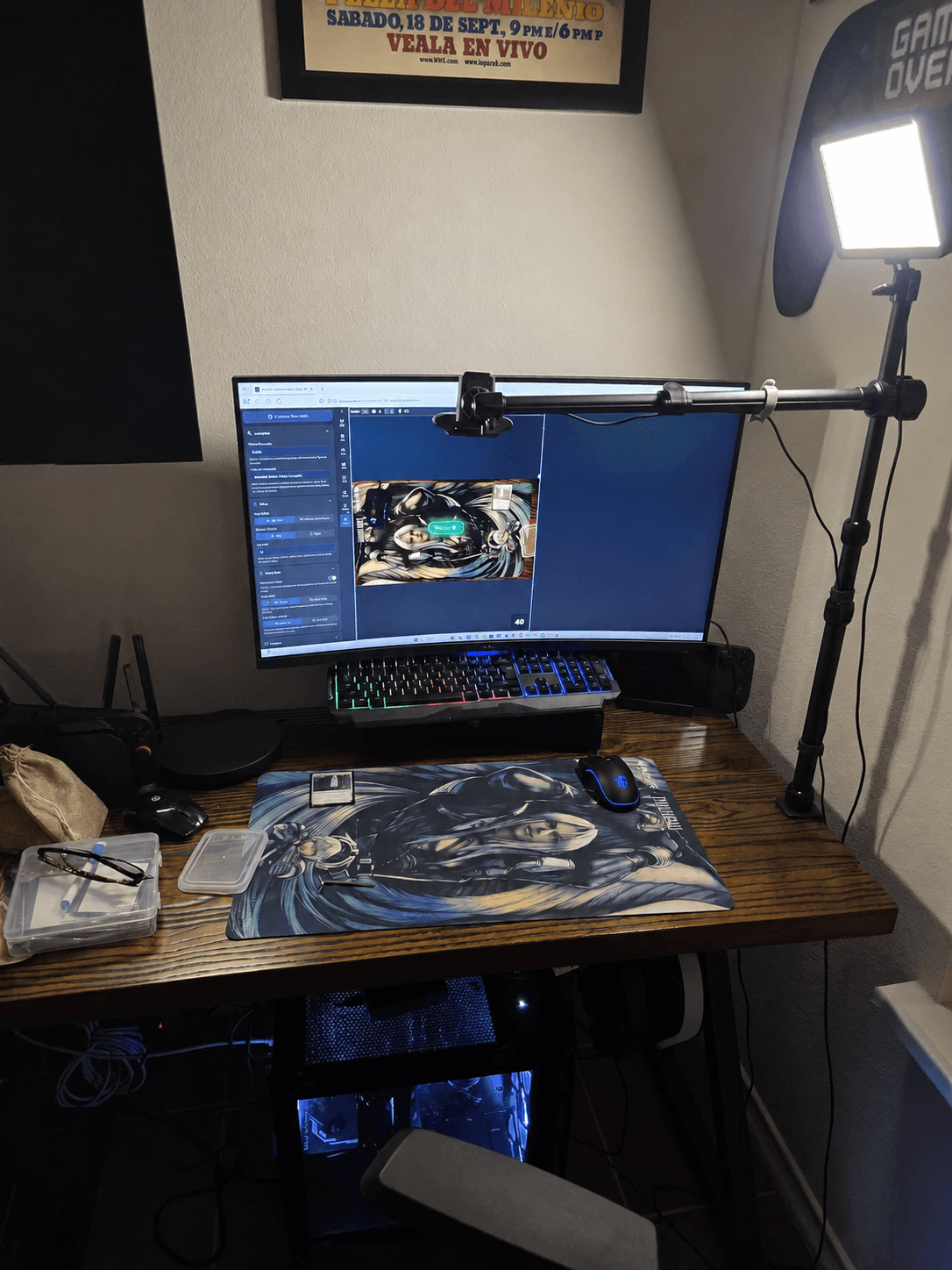
The short version
A 1080p webcam or your phone. Convoke sends your video at up to 1080p, so that is the sweet spot: anything sharper won’t look different to your opponents.
Mount the camera above the middle of your playmat, pointing straight down. From an angle, the far cards get small and hard to read.
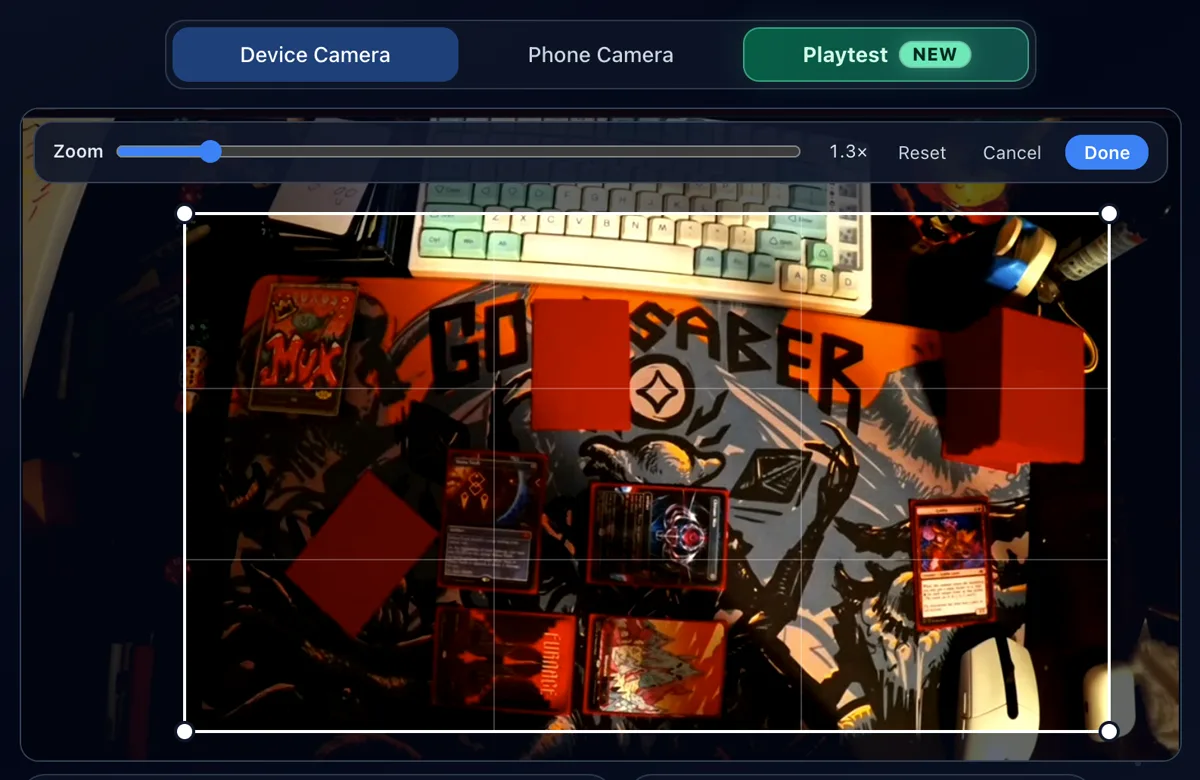
Raise or lower it until the whole battlefield fits with a little margin. For a standard playmat that is usually 45 to 60 cm (18 to 24 in) above the table. It doesn’t have to be perfect: before you join a game, the Crop button on your camera preview lets you zoom in and choose exactly what others see.
A lamp off to one side, not above or behind the camera, so your sleeves don’t reflect it straight back.
If your camera app allows it, turn off autofocus once the cards look sharp, so it doesn’t hunt every time your hand crosses the mat.
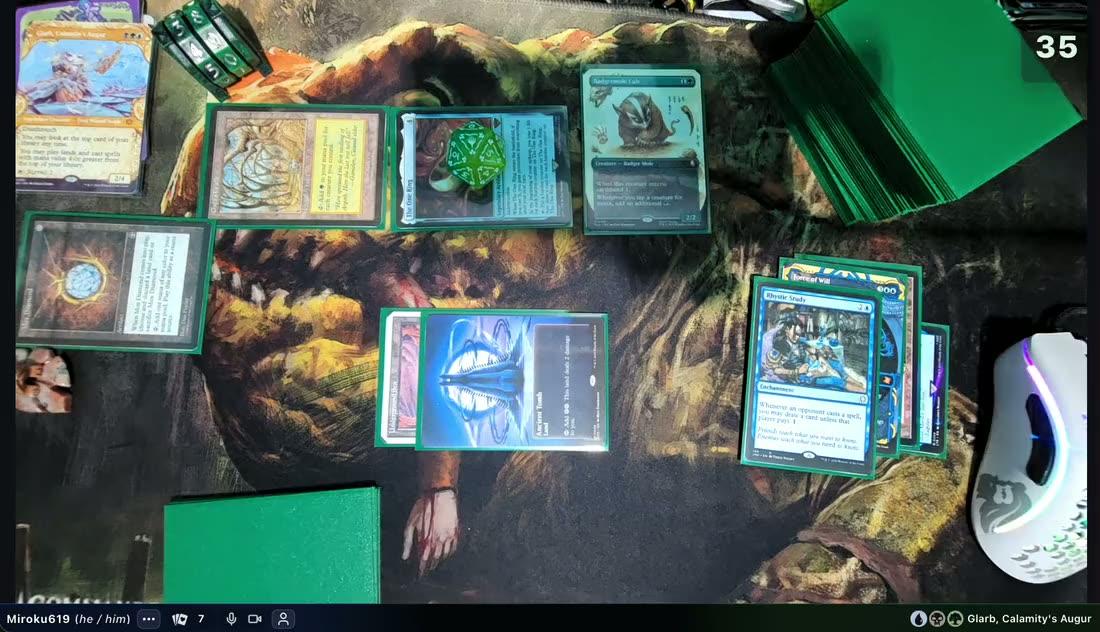
1Click Crop and drag the frame over your playmat.
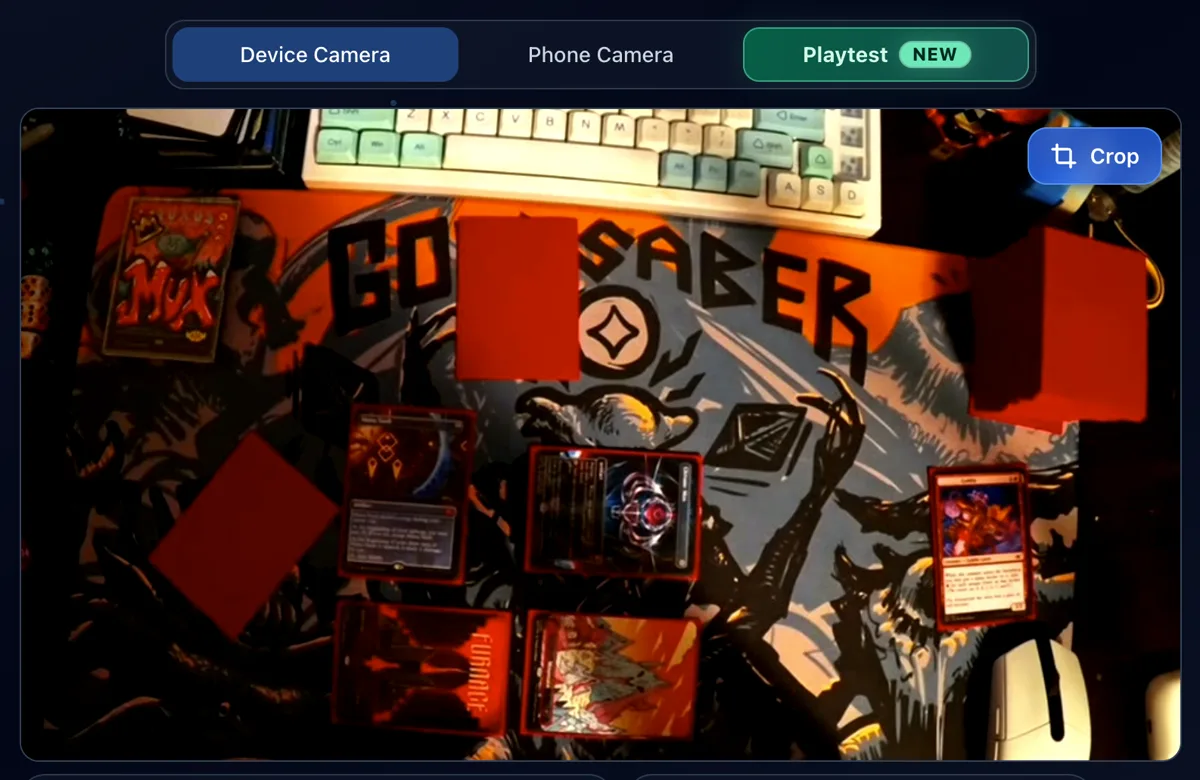
2Everyone at the table sees just your playmat.
Which camera
Position and light matter more than the camera. Four ways to show your board:
The simplest choice: it clamps to a boom arm and stays put. Skip 720p webcams, which make cards at the edge of the mat hard to read.
Often sharper than a webcam. Mount it overhead, scan a QR code, and it becomes your table camera while your computer shows the game.
A mirrorless or DSLR camera gives the crispest picture, but needs a capture card or the maker’s webcam app. Worth it if you already own one.
Play your decklist on screen with digital cards, at the same table as players on webcam.
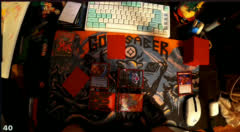 720p
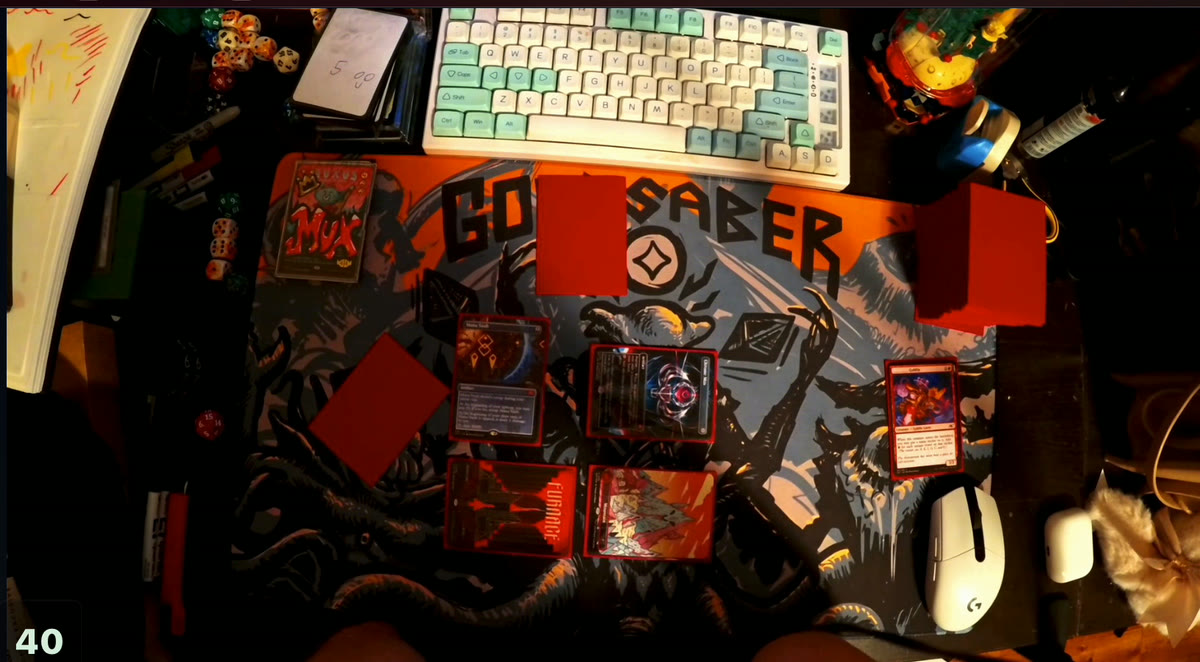 1080p
Mounting it overhead
A desk boom arm clamps to your table and reaches over the playmat, so the camera looks straight down and stays out of your way. A tripod at an angle works in a pinch, but cards at the far end of the mat come out small. This is the gear we recommend:
Straight overhead
Every card comes out the same size, and the whole mat is in view.
Angled from the side
Near cards look big, far cards come out small and hard to read.
Stand
Desk boom arm that holds a webcam straight over your playmat. The one piece of gear worth buying.
View on Amazon.comStand
The same boom with a phone clamp, if your phone is the camera.
View on Amazon.comWebcam
A 1080p webcam that clamps to the boom. Plenty for Convoke, which sends up to 1080p.
View on Amazon.comLight
A small dimmable LED panel to light the mat from the side.
View on Amazon.comAs an Amazon Associate, Convoke earns from qualifying purchases.
Lighting and glare
A white flash across your sleeves means a light is reflecting straight into the lens. Move the light, not the camera.
Light above the mat
The sleeve reflects the lamp straight into the lens: a white flash over the card.
Light from the side
The reflection goes the other way. The camera only sees the evenly lit card.
Place your lamp to one side of the mat, at roughly 45 degrees. Light that comes from the side bounces away from the camera instead of into it.
A wide, dimmed light gives even colours. A ceiling lamp right above the mat is the usual culprit: switch it off or light around it.
Matte sleeves reflect far less than glossy ones, and foils shine less once the light is off to the side.
Daylight changes during a game and your camera keeps re-adjusting. A lamp keeps the picture stable from turn one to the last.
Settings
Lock focus and exposure once the cards look sharp. If the picture flickers under your lights, set anti-flicker to 50 Hz in Europe or 60 Hz in North America.
Before every game, choose Device Camera for a webcam or Phone Camera for your phone. You can switch later in the Camera section of the in-game Settings.
16:9 fits a standard playmat best. Leave quality on Auto; if your video stutters, lower it to 720p. Turn on the connection stats overlay to see your resolution and frame rate live.
Phone as the camera
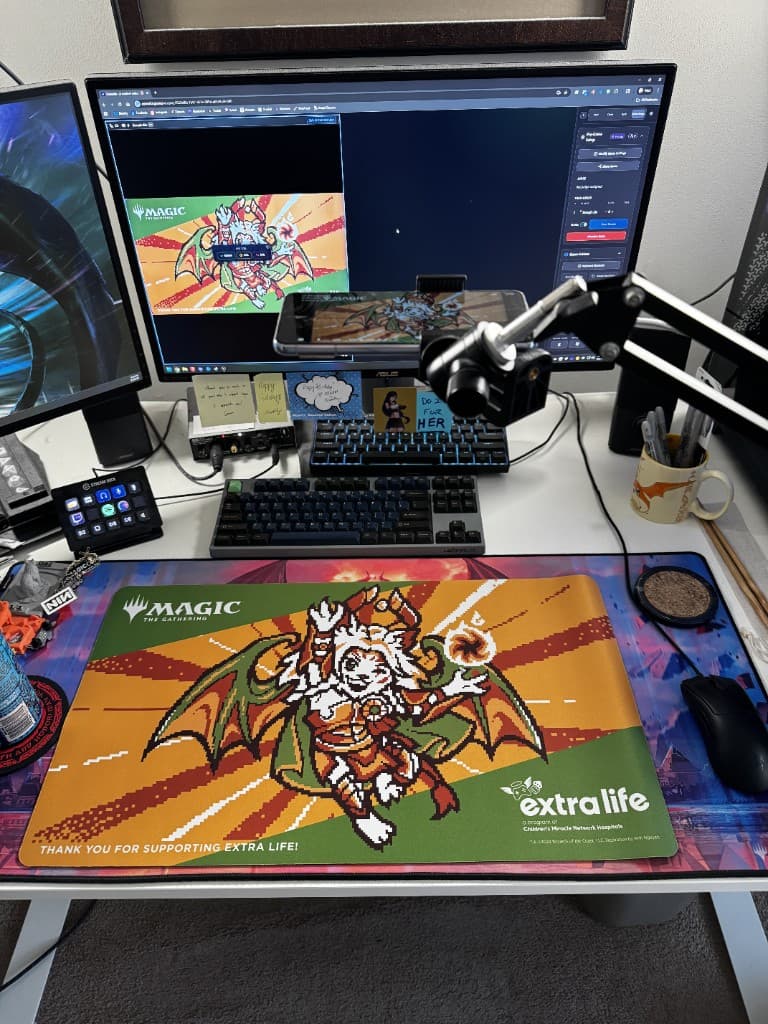
A phone holder on a boom arm, or any stand that reaches over the playmat, with the back camera pointing straight down.
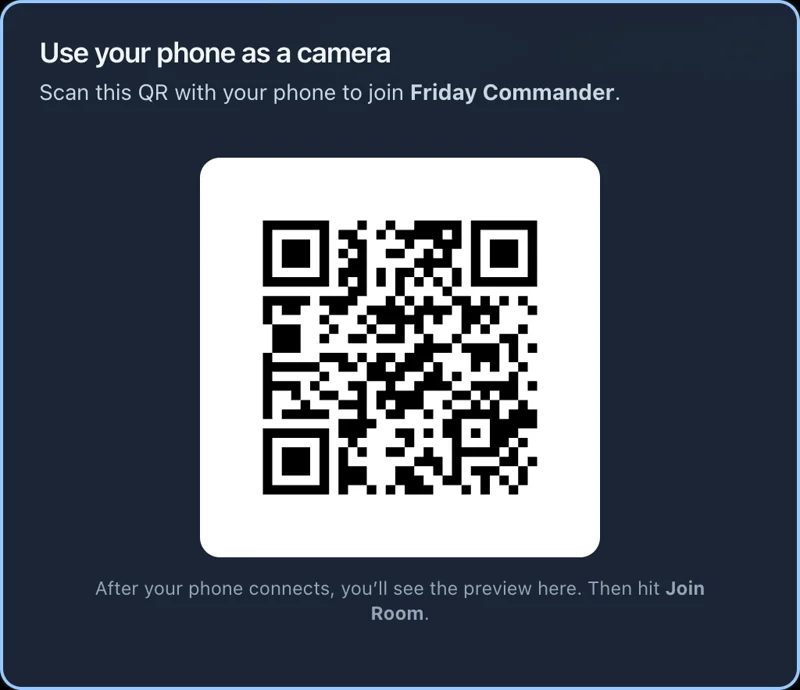
Before joining a game, pick Phone Camera, then the QR button in the camera row.
Use the phone’s camera app and open the link. Your phone’s picture appears on the computer, and you can join the table.
Convoke keeps the phone’s screen awake during the game. From the phone’s Settings button you can switch lenses or change the resolution.
Troubleshooting
FixThe camera may be too close to focus, or its autofocus keeps hunting. Raise it a little and lock the focus. If the whole picture is soft, check that quality isn't set to 480p or lower in the Camera section of Settings.
FixA light is reflecting into the lens. Move your lamp to the side of the mat and switch off any ceiling light directly above it.
FixIn the Camera section of Settings, switch the video encoder to H.264. You'll reconnect for a moment, then try again. Use it only if video fails, since the default gives a better picture.
FixAnother app or browser tab has the camera, often a video call, Discord or OBS. Close it, then retry in Convoke.
FixYour browser is blocking it. Allow camera access for convoke.games in the browser's site settings, then reload the page.
FixLower the quality to 720p in the Camera section of Settings, or close other apps using your connection.
Real desks
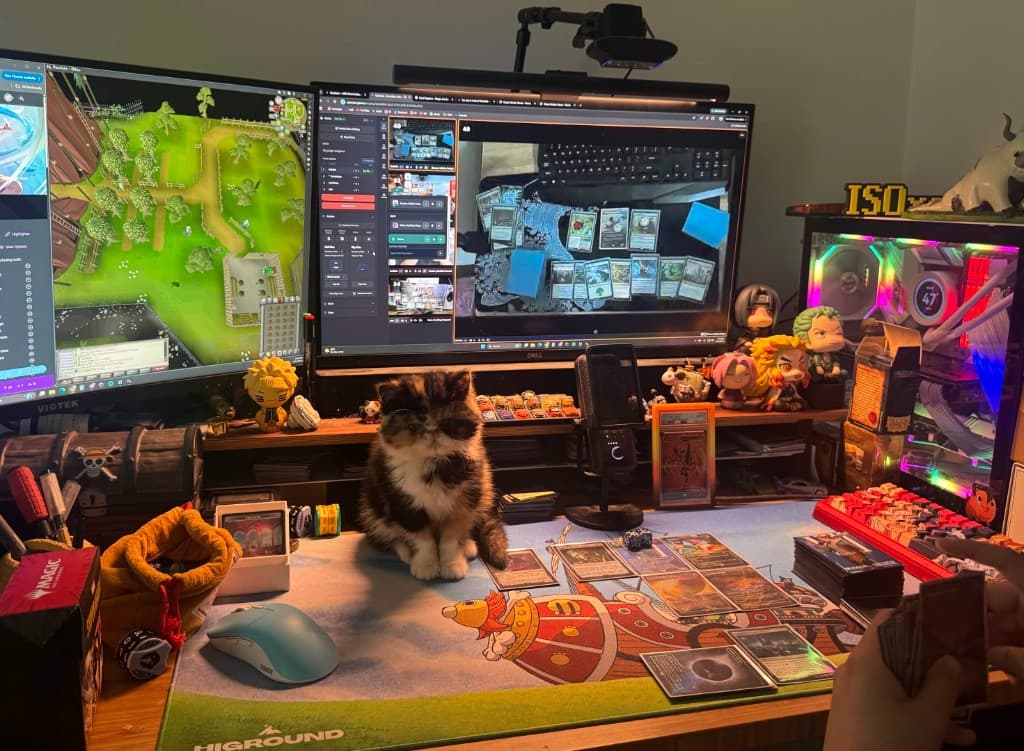
Boom arms, phone holders and plenty of playmats. Want the full walkthrough of one player’s gear? Read Amy’s setup guide on SpellBot.
Questions
Any 1080p webcam that holds focus, mounted straight above your playmat. We use and recommend the Logitech C920 family. A 4K webcam won't look sharper to your opponents: Convoke sends video at up to 1080p.
Yes. Before you join a game, choose Phone Camera and scan the QR code with your phone. The phone becomes your table camera while your computer shows the game. Phone cameras are often sharper than webcams.
High enough that the whole playmat fills the picture with a little margin. For a standard playmat and a 1080p webcam, that is usually about 45 to 60 cm (18 to 24 inches) above the table.
Not for a webcam or a phone. You only need one for a dedicated camera (mirrorless or DSLR) that has no webcam mode of its own.
Yes. The same overhead webcam works on Convoke without changes, and your video is sent at up to 1080p instead of 720p.
No. You can play your decklist on screen with digital cards, at the same table as players on webcam.
Point the camera, switch on the side light, and sit down at a Commander table. It’s free.
New to Convoke? How to play EDH online with friends